
Zoom Set-up and Other Resources

Student Resources

This tab is available in every course in the same spot as you see it above. 

Faculty Resources

Loads of FAQ and resources are located in FACULTY FORUM.  Look way up to the navigation bar of the webpage to see this tab.

Running a Zoom Class Behind the Scenes

Zoom is a powerful tool. It looks simple and when you have a class full of people it all of a sudden becomes the most complicated tool ever.

What follows is real-time unscripted set of videos highlighting the various points of running the zoom side of a class.

Starting a Class and Set-up

Sign-in, loading the slides, music and waiting room settings. Getting oriented at least 15 minutes before the class starts.

Class Opening with Music

This video will show the class opening, how to record and share.

ISSUE: The volume of the music playback keeps changing and/or can barely be heard. 

SOLUTION: Adjust Sound setting that allows windows to reduce volume when other sounds are present. Set to  “Do Nothing”

ADJUSTMENT: The screens shown here will be different based on your version of windows. Have patience, keep looking for this setting.

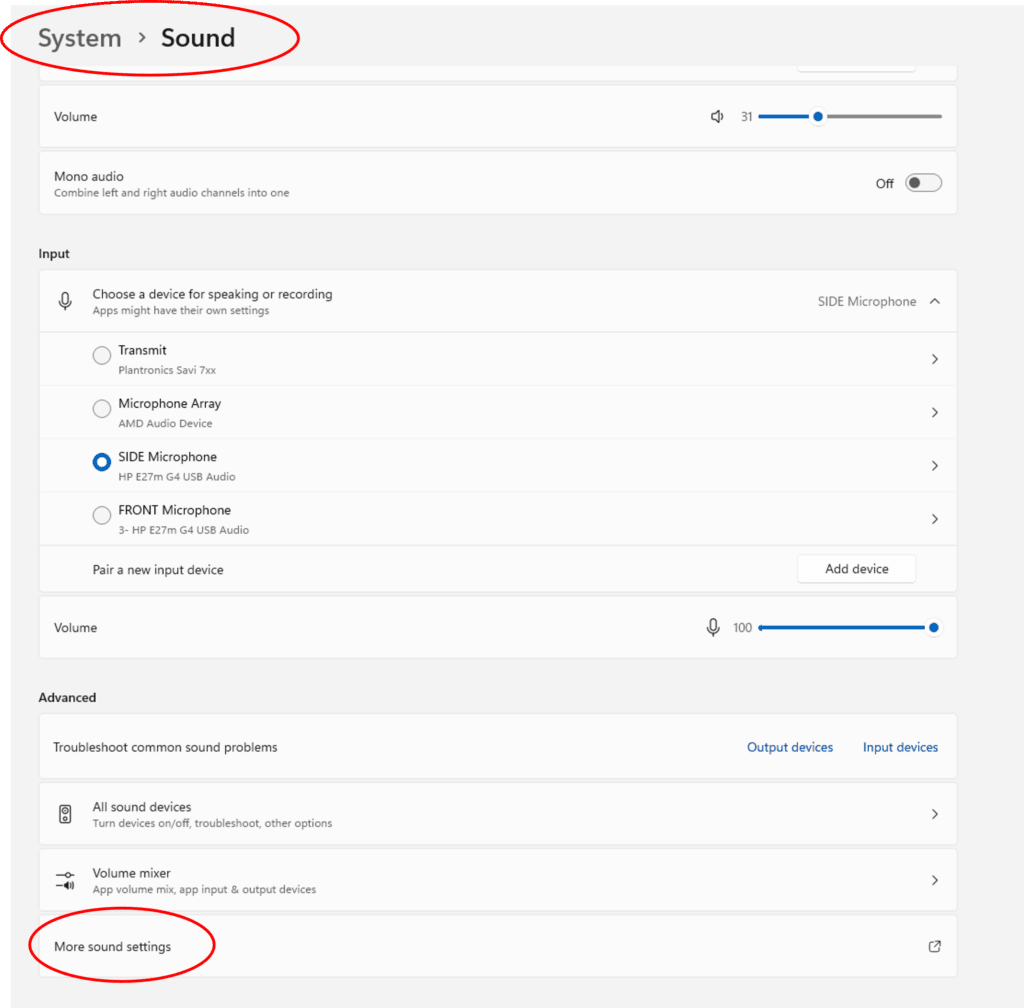
Locate Sound Properties Settings. (At the time of this recording this is what a windows 11 looked like. ) 

  1. System > Sound
  2. Select “More Sound Settings”
  3. Select “Communications” tab on Sound Properties screen.
  4. Select “Do Nothing Option”
  5. Adjust volume of iTunes or Spotify to allow speaking to be heard with the music at a volume setting comfortable for the students to listen to.

Break Out Rooms - Creating and opening Breakout Rooms

Creating the rooms, setting return countdown, opening rooms, watching room activity, going into each room to see how students are doing and sending instructions into all the breakout rooms.  Be sure to PAUSE the recording.

Communicating Instructions Via Broadcast

Three ways to communicate to each break out room. 1) You just saw, go join each room one at a time.  2) Send a text message into all rooms. 3) Use your mic to share verbal instructions to all rooms simultaneously. 

Visiting Each Room and Moving to Round 2

In this video, we hang out in the main room and navigate to check in to each room to see how they are doing.

Closing the Break Out rooms and Restart Recording

This clip show what happens when you close the rooms. See the reminder to start the recording again.

Navigating to a Specific Slide

This clip is trying to show you you can jump to any slide in the deck when you want to. Move you cursor to be on the screen you are showing. Type the slide number and hit enter. You go right to it.  No more advancing through the slides you don’t want to show to get the one you do.

How to Write SJT Exams

The Final ICF Exam is NOT your average test your knowledge exam. It tests your attitude and approach to things. Called a Situational Judgment Test (SJT) it discerns how the student has integrated the concepts of the ICF Core Competencies into who they and and into their decision making.  It assesses if the student’s judgment and application of the various core competencies is in fact consistent across various real situations. BIG DIFFERENCE from cramming the night before by reading the competencies descriptions and thinking you can ace it. You won’t. 

The Student Coach Resources hub is a dedicated space tailored to empower aspiring coaches on their academic and professional journey.

View Student Resources

Join our ongoing conversation in Slack by clicking the logo below:


If you need assistance, please contact our Student Service team at support@coachingoutofthebox.com
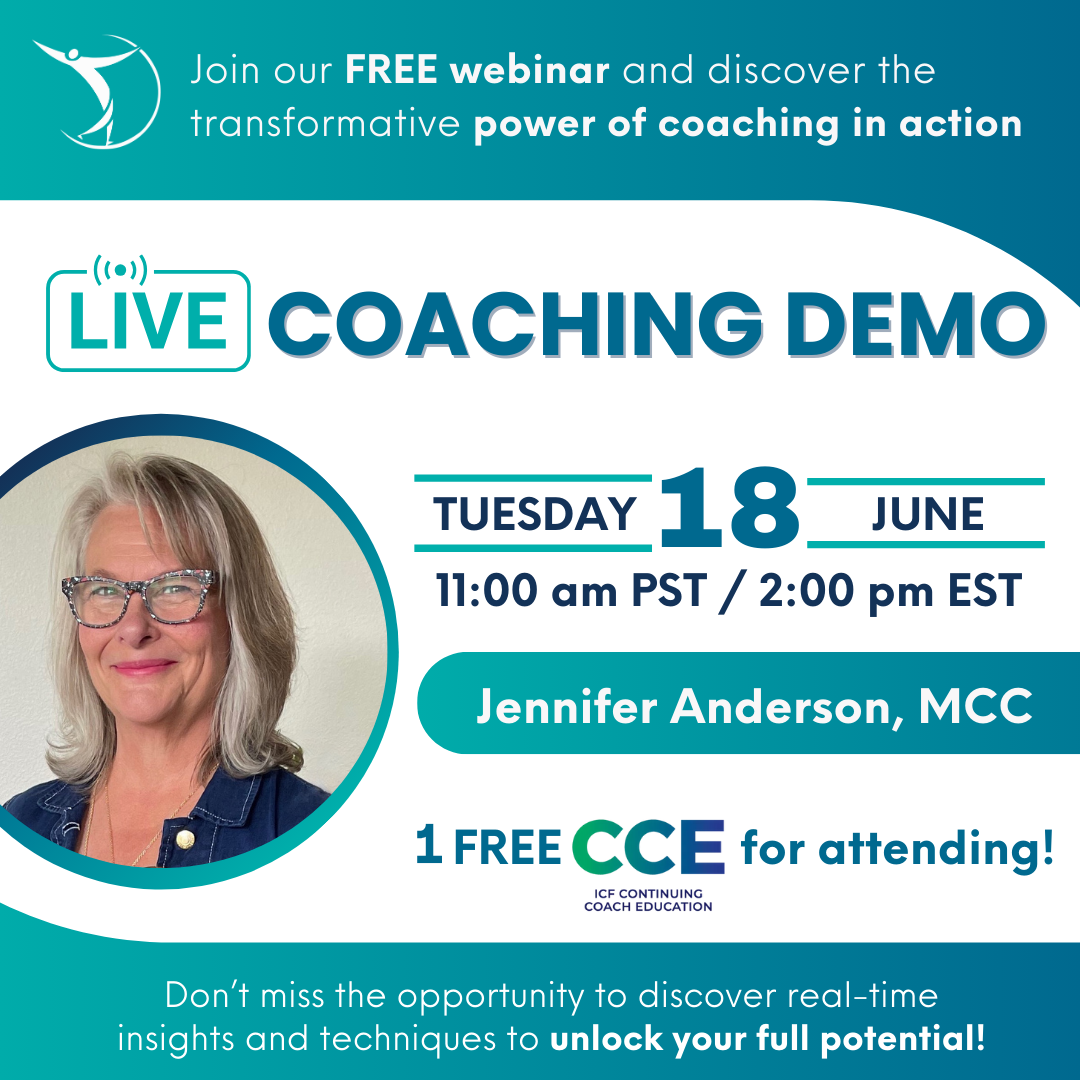
Join Us!

Space is limited – reserve your seat today!
1 CCE for attending